Multi-language content
About Multi-language content
The Developer Portal supports multiple languages (Norwegian and English) for most of its content nodes.
For each content node that is published, it is possible to create an english counterpart. Whenever a content node exists in two languages, both can be maintained and edited the same way as with single-language content nodes, it is also possible to edit both versions at once using the split view feature.
The Norwegian language is set to mandatory, meaning each content node must have a Norwegian version in order to also have an English version. It is possible to create and edit an English node before publishing the Norwegian version, but it will not be possible to publish the English version until the Norwegian version is also published.
Switching language context in the backoffice
In order to start editing content one may chose to access the backoffice content in two ways;
- Set language context for the entire backoffice to the desired language.
When opening up the backoffice you can access the available language choices in this menu:
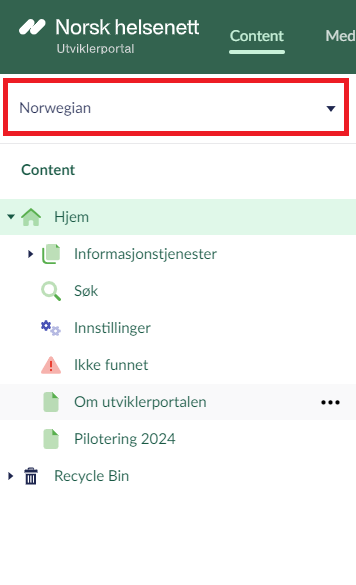
When switching the backoffice language context through this menu, you will be setting the desired language context for your entire session. This means every content node in the content tree will be showing the english version, you are now viewing all content in the Developer Portal in your desired language context.
- Access a specific content node in the desired language context.
When viewing a specific content node you can chose to switch the language context of that specific node. To do so find the language switch on the right-hand side of the content node name intput:
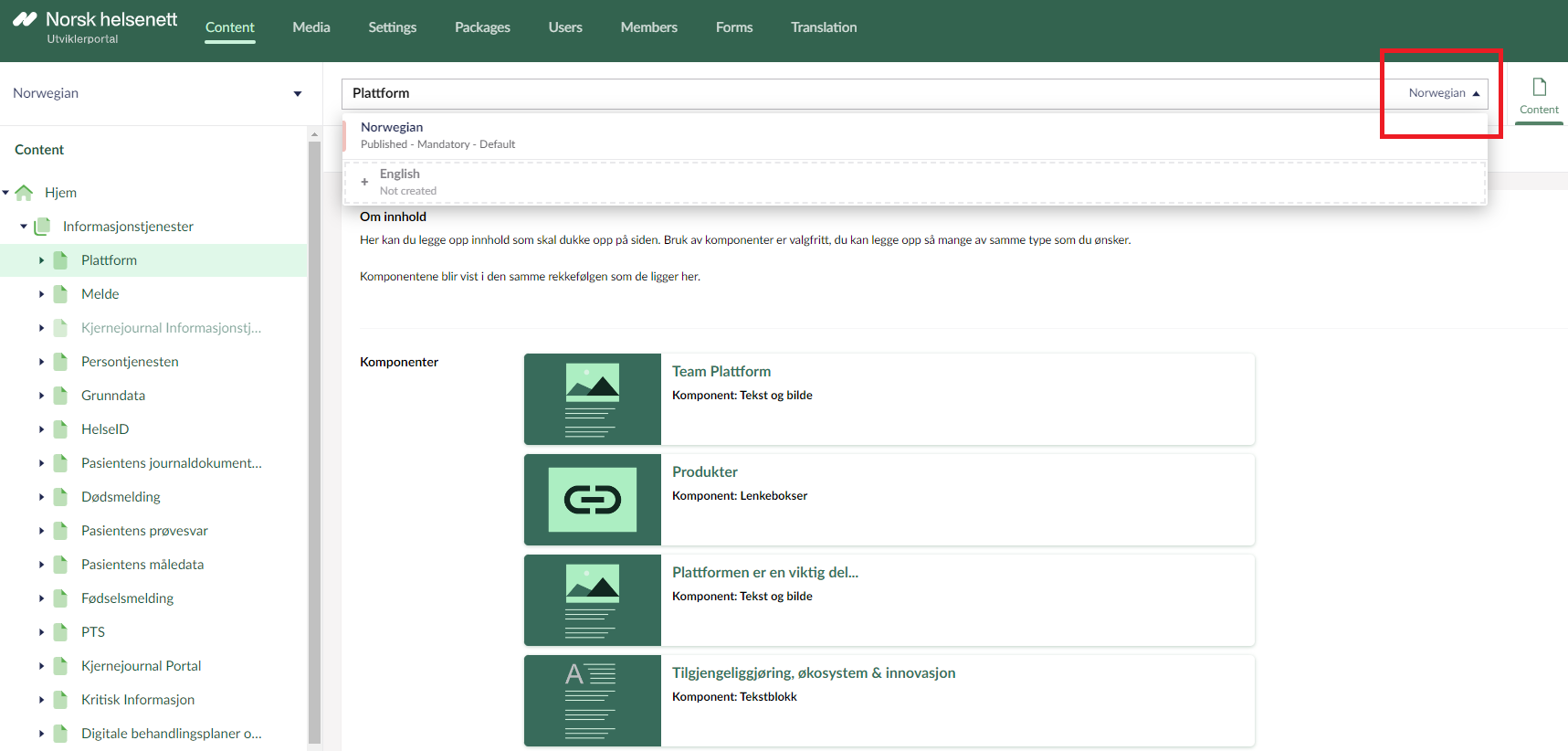
When switching content specific language context you will only view that specific content node in the specified language. Accessing any other content node via the content tree will automatically switch back to whichever language is set in the backoffice language context switch.
Publishing content in multiple languages
When a content node has multiple language versions set up, depending on your editing choices, publishing content might need you to go through some additional options before publishing. Mainly this happens when content has been edited in both the Norwegian and English version of a content node before publishing.
If this is the case you will see this menu pop up when pressing the publish button:
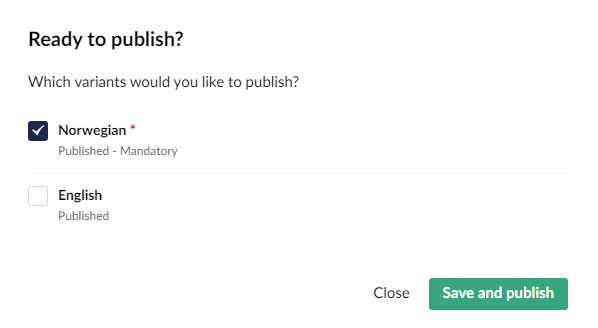
In this menu you will be able to specify which versions you wish to publish. Unchecked versions will still be saved but not published.
The split-view editing window
One major feature for developing and maintaining content in multiple languages is the split-view editor window.
This feature allows you to edit and move content between both versions as needed without having to jump between versions.
To access the split-view editor window, access any content node that has a Norwegian and English version, and in the content-specific language switch as shown above, find the following button when hovering over language version:

Once you've clicked the button you will be in the split-view editor which looks like this:
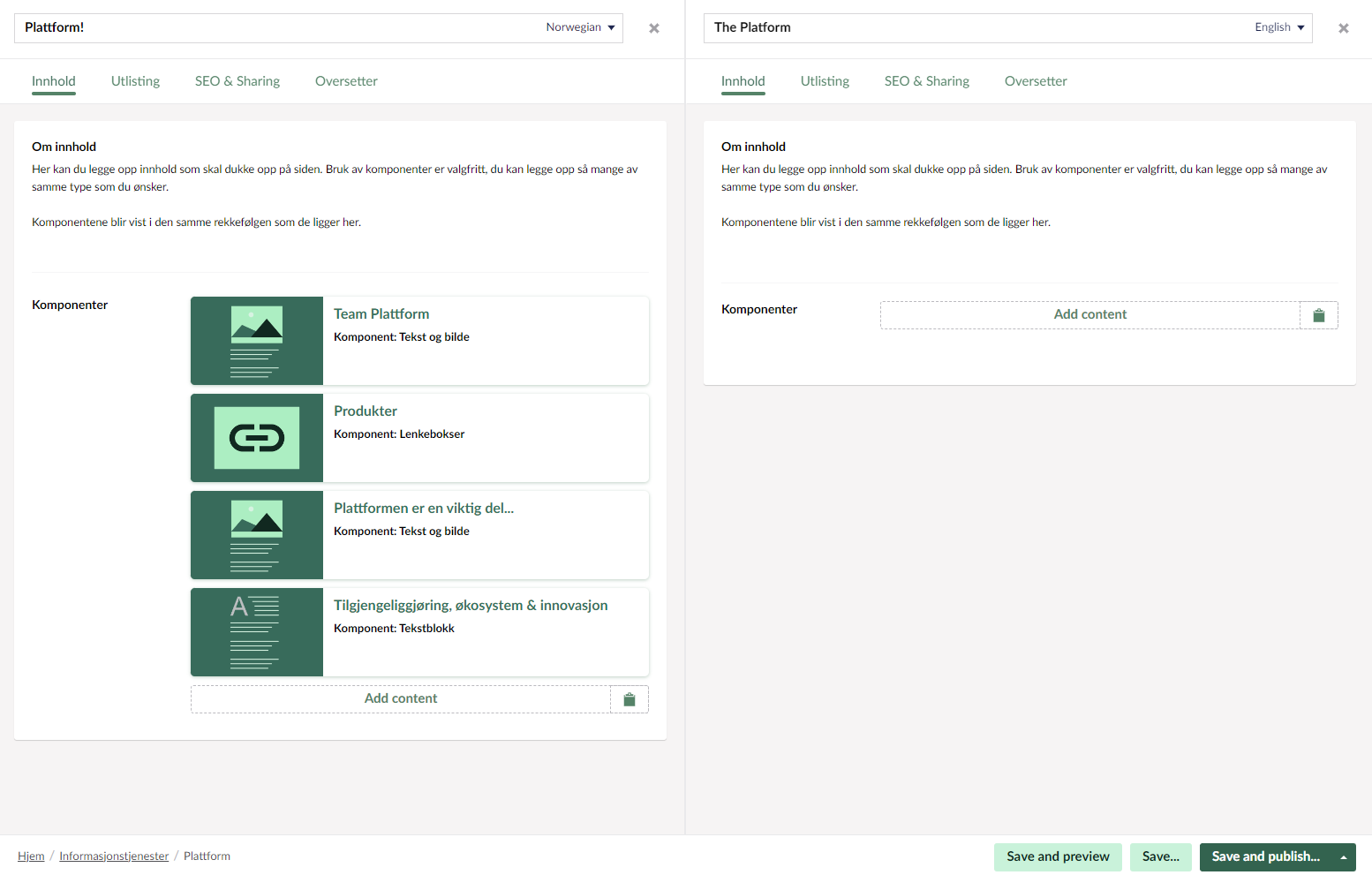
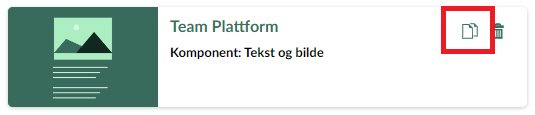
You can now proceed with editing both versions as needed. The split-view editor is particularly handy if you wish to move components between versions. Remember that you can add a component to the clipboard by hovering over a component and clicking the copy button:
You can then paste this component into any component editor by clicking the clipboard button next to the "Add content" button:

This way you can easily copy your content between versions.